
Receive notifications directly on your mobile or tablet via the Optima mobile app
Safely approve and instantly confirm your transactions with a tap!
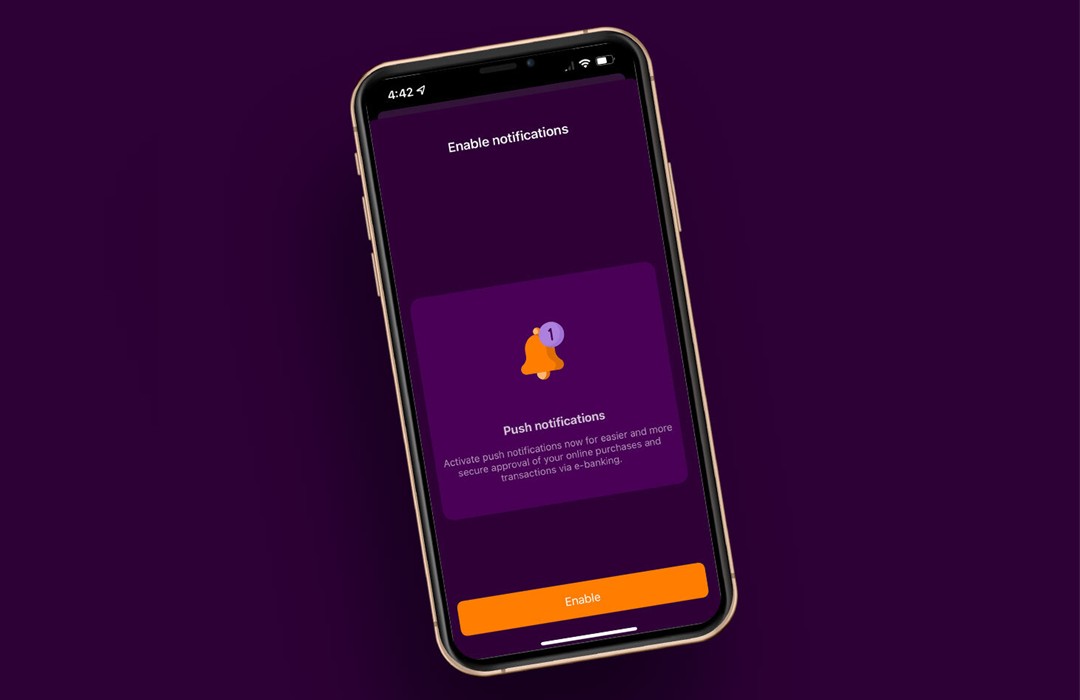
How can I enable push notifications?
With a few clicks, you can enable push notifications for transaction confirmation.
The procedure is simple:
Step 1: Download the Optima mobile app if you don't already have it, or upgrade to the latest version on your mobile.


If you are a new user, once you install it:
- Log in with your Optima e-banking user ID and password
- Enter a 4-digit PIN for easier access
- Enter the code sent to your mobile and e-mail
- Enable biometric authentication, if supported by your device.
Step 2: Enable push notifications directly in the app by tapping the on-screen prompt.
That’s it! Push notifications have been enabled. You can confirm your e-banking transactions and online purchases instantly, quickly and securely!
Otherwise, you will continue to confirm your e-banking transactions using a confirmation code sent to your mobile phone. The OTP will preferably be sent via Viber, provided that you have a Viber account; otherwise, it will be sent via SMS.
Follow us

Let’s talk
Can we help you? Do you have any questions?
How can I manage push notifications
You can manage push notifications via the Optima mobile app by selecting Profile > Settings > Push notifications.
What should you do if you do not receive notifications on your mobile?
First, you need to make sure that you have downloaded the latest version of the Optima mobile app and that you have enabled push notifications.
If you still do not receive push notifications, check that you have enabled push notifications from your device settings, and that the mobile data on your device is on, or that you are connected to a wifi network.